

CEAT IT - Printers
Adding a Printer
Add a printer on Windows 10/11
Connecting to CEAT Printers - Student: Windows 10/11
Prerequisite: You must be connected to Eduroam Wi-Fi or OSU's wired network before attempting to connect to a CEAT printer.
Connect to the CEAT print server:
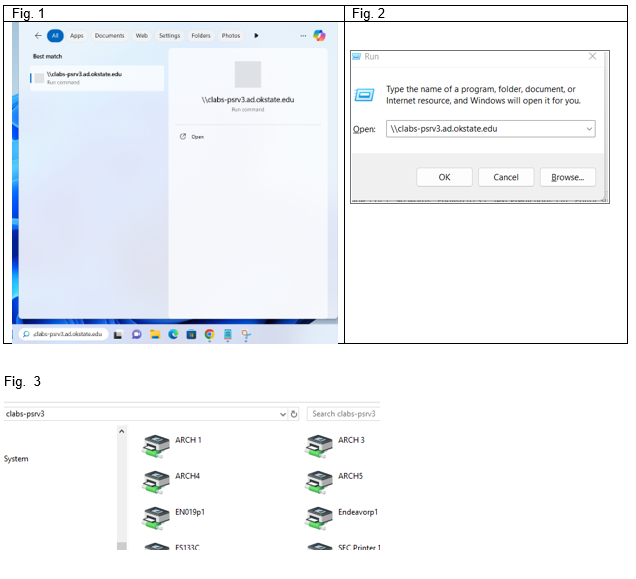
1. Click on the Start Menu or click in the search bar (Fig. 1) OR press Windows Key-R to open the run box (Fig. 2)
2. Enter the following text (path to the CEAT print server):
\\clabs-psrv3.ad.okstate.edu
3. If prompted, enter your Okey credentials
Add the printer:
1. Double click on the printer you wish to add OR right-click and select “connect.” (Fig. 3)
2. Windows will add the printer and install the appropriate driver
Add a printer on MacOS
MacOS 13 (Ventura) or newer
- Open System Setting from the Apple Menu
- Select Printers and Scanners
- Click "Add Printer, Scanner, or Fax"
- Select the IP tab
- Enter one of the printer addresses below in the "Address" field and click "Add:"
- Choose Duplex off or on
- Click OK
MacOS 12 (Monterey) or older
- Open System Preferences from the Apple Menu
- Select Printers and Scanners
- Click the “+” button to add a printer.
- Select the IP tab
- Enter one of the addresses below in the “Address” field and click "Add:"